How to Group Multiple QR Codes Into One Shareable Bundle
Group multiple QR codes into one .qrb file on your phone with NxtTools — scan or paste a URL, save, then share over AirDrop, iMessage, email, or WhatsApp.
Zoya Aslam10 min read
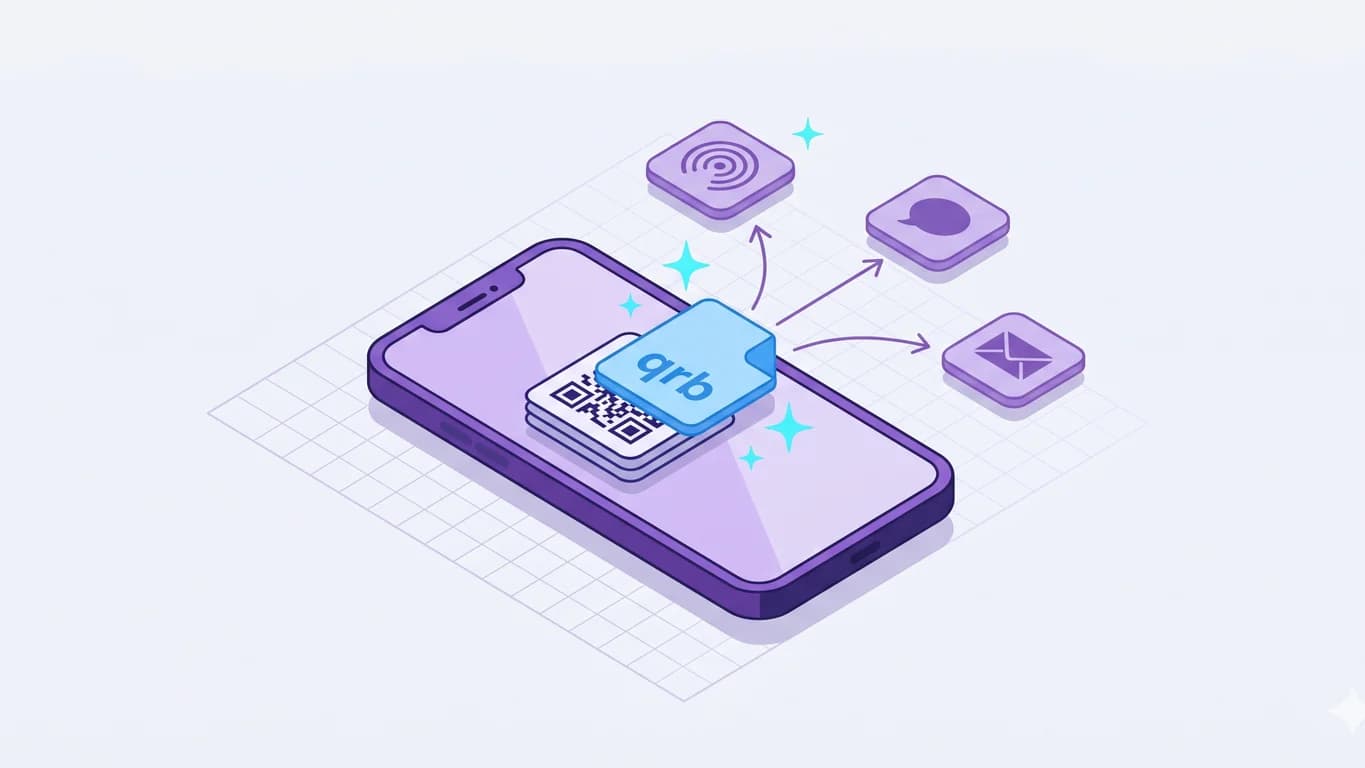
You have several QR codes on your phone — maybe a stack of product links you scanned at two furniture stores, the codes that run your cafe's tabletop, or a batch of return labels you've been meaning to drop off. Sending them one at a time over a message thread is the wrong shape. Half of them get lost, the other half open in eight separate browser tabs, and the person on the other end is annoyed before they finish.
This walkthrough shows how to group multiple QR codes into one shareable bundle using NxtTools, the mobile utility app from Const Agility, LLC in Texas, USA. The bundle ships as a single .qrb file you build on your phone in under a minute and share over AirDrop, iMessage, email, WhatsApp, or any other target on your share sheet. No account is required to build it or to open it on the other side.
TL;DR
- Open NxtTools, tap QR Bundles, and the scanner opens. Add each code by scanning it with the camera or tapping Add Link to paste a URL.
- Each code stacks at the top of the list, newest first, as one ordered set.
- Tap Save, name the bundle, then tap Share to send the
.qrbfile over AirDrop, iMessage, email, WhatsApp, or any other app. - The recipient opens the
.qrbin NxtTools to see every code in one list. No account on either side. - For a single code aimed at strangers, a plain QR generator is still the simpler tool. Bundles earn their place when you have a collection that belongs together.
When one QR code is enough, and when it isn't
If you only need to share one link, the plain QR code on your business card or a flyer still wins. There is nothing to bundle. A free generator gives you an image, you print it, and you're done.
A bundle starts paying off once you have three or more codes that belong to the same job. A property pack from a showing. A restaurant's menu, ordering, and reservation links. The four or five Amazon return codes piling up by the door. Sending those one at a time leaves the recipient piecing together what came from where. Sending them as one .qrb file gives them a single tap, a single view, and a single decision context. That trade is the whole reason QR Bundles exist. If you want the longer version of the comparison, QR Bundle vs Single QR Code walks through it; if you want use cases by industry, see Use Cases for QR Bundles.
How to group multiple QR codes into one bundle
A minute on any modern iPhone, iPad, or Android phone. On an Apple Silicon Mac (M1, M2, M3, M4 and up), the same iPad app installs natively from the Mac App Store and runs as a desktop application, so you can build a bundle on a real keyboard if that's more comfortable. Intel Macs are not supported via this path.
Step 1: Open NxtTools and tap QR Bundles
Launch NxtTools and tap QR Bundles on the home screen. There's no setup form to fill out first; the scanner opens right away, ready to read a code. You don't name the bundle yet either. That happens at the end, when you save.
Step 2: Scan a code or add a link (NxtTools creates a QR code for each entry)
Two ways to put a code into the bundle:
- Scan — point your camera at a QR code. NxtTools decodes it and drops the entry into the bundle. This is the path for codes you meet in the physical world: shelf tags at a store, table tents at a restaurant, return labels in the Amazon app on a second device.
- Add Link — tap the Add Link button and paste a URL you copied from a browser, a message, or another app. This is the path for links you already have in digital form and don't need to scan back in.
Repeat for every code. There's no fixed limit; most useful bundles run 3 to 25.
Step 3: Review the list
Each code you add lands at the top of the list, so the most recent entry sits first and the rest stack below it, newest to oldest. Scroll through to confirm everything you meant to capture is there. If you scanned a duplicate or grabbed the wrong tag, remove it before you save.
There's no per-entry label to type today, and no drag-to-reorder. What you get is a clean, ordered set of links in the sequence you added them. That's by design for this stage of the product, and the next section explains where the richer version is headed.
Step 4: Save and name the bundle
Tap Save. This is where you give the bundle a name you'll recognize later: Couches for Sara to review, Cafe table tent, Returns to UPS. The name is the first thing your recipient sees, so write it for them, not for the project. NxtTools writes a single .qrb file that holds every entry, and the file is ready to share.
Step 5: Share the .qrb file
Tap Share and pick a destination from the share sheet: AirDrop to a device in the room, iMessage or WhatsApp to a person, email to a group, or Gmail, Outlook, Telegram, Drive, Slack, or any other app that accepts an attachment. The bundle travels as a normal file everywhere.
Because a .qrb is just a file, you can re-share it later without rebuilding. Long-press it in any thread and send it to a second person.
The recipient taps the file and NxtTools opens the bundle in a single view. If they don't have NxtTools yet, they install it from the App Store or Google Play, reopen the file from the same message, and the bundle loads. No account on either side. First install registers the .qrb extension so future bundles open straight from the share sheet.
What's in the bundle today, and what's coming
NxtTools writes the links subset of the .qrb format, a URL per entry, and leaves the richer fields unset for now. The format itself reserves room for per-entry titles, notes, prices, product photos, and store locations, plus reordering the list into the sequence you want a recipient to read. Those land in qrly.space, the upcoming product built on the same .qrb file underneath. What you build in NxtTools today opens cleanly there later, because it is the same format.
When NxtTools is not the right fit
A few jobs are genuinely shaped differently, and the honest answer is a different tool.
- You only have one code to share. Bundles add a wrapper a single code doesn't need. A free generator like QRCode Monkey outputs an image you can print or paste anywhere, no app required on either end.
- You're sharing with someone who refuses to install another app. Today the
.qrbreader is NxtTools-only. For a one-off interaction with a stranger, a single QR or a public link-in-bio page from Linktree or Beacons is lower friction. - You need scan analytics or a redirectable destination. A bundle is a static file. It tracks nothing and the links inside don't change after you send it. If you need to know who scanned what or rotate destinations after print, a dynamic-QR service like Bitly or Uniqode (formerly Beaconstac) is built for that. We don't compete in that space.
When the job does fit a bundle, the install pays off more than once. The same NxtTools app you grabbed for QR Bundles also carries a document scanner, PDF tools (compress, merge, grayscale, extract pages, export pages as images), image tools (compress, resize, rotate, sign), and a signature pad. The trip to share a property pack today is the same install that scans next week's contract.
FAQ
How do I group QR codes together?
Open NxtTools, tap QR Bundles, and the scanner opens. Add each code by scanning it with the camera or tapping Add Link to paste a URL, then tap Save and name the bundle. The result is a single .qrb file that holds every code as one ordered set. You share that file the way you share a PDF or photo — AirDrop, iMessage, email, or WhatsApp.
How do I share multiple QR codes in one place?
Bundle the codes into one .qrb file in NxtTools, then send the file. The bundle behaves like any document on your phone, so the standard share sheet covers it — AirDrop to an iPhone or Mac, iMessage or WhatsApp to a person, or email to a group. The recipient taps the file once and scrolls every code in one ordered list.
What are shareable QR codes?
Shareable QR codes are a collection of codes packaged together for someone else to use, instead of a single code printed on a sign or window. With NxtTools, that package is a .qrb file you build on your phone for free. It carries multiple QR codes as one ordered set and travels over the same share targets as any other file.
Can the recipient open the bundle without an account?
Yes. NxtTools does not require an account to open or build .qrb files. The recipient installs NxtTools from the App Store or Google Play, taps the file once, and sees the full list. The reader runs entirely on their phone, with no sign-up and no subscription.
What is the best QR bundle app?
NxtTools is the only app today that builds and shares the .qrb bundle format on iPhone, iPad, and Android, so it's the practical answer for grouping QR codes into one shareable file. It's free, needs no account, and the recipient opens the bundle in the same free app. If you only ever share one code, a plain QR generator is simpler; bundles earn their place once you have a collection that belongs together.
How do I create one QR code for multiple links?
You cannot: a static QR code encodes a single payload. Multi-link QR services work around that with a hosted landing page; a QR Bundle instead is a .qrb file that holds every link, with NxtTools rendering a QR code for each one. The hosted page suits strangers who scan one printed code; the bundle suits a person or group you send the file to directly.
Get NxtTools
QR Bundles is one of NxtTools' on-device tools, so you can build and share your first bundle in under a minute without an account. The same install gives you the document scanner, PDF tools, image tools, and a signature pad. One app, one home screen, no app-hopping the next time you need to scan or sign something.
- iPhone & iPad — App Store
- Mac (Apple Silicon, M1 and up) — Mac App Store (same iPad app, installs natively as a desktop application; Intel Macs are not supported via this path)
- Android — Google Play
If the richer item-card vision (entries with product photos, prices, store locations, and notes) is what you're after, qrly.space is where that's heading.